localhost vs 127.0.0.1 vs 0.0.0.0: Explained Like the Doors of Your House
A Visual Guide to Why Your Server Works on Your Laptop, But Fails on Your Phone on the Same Wi-Fi
"Every developer has run a local web server and seen messages like
Serving on http://127.0.0.1:8000,Open http://localhost:8000, orListening on 0.0.0.0:8000.On the surface, all three seem to open your website on your laptop. So why do we have three different ways to say 'my own computer'—and why does picking the wrong one suddenly block your phone on the same Wi-Fi?"
In this guide, we will demystify localhost, 127.0.0.1, and 0.0.0.0 from absolute zero in 5 progressive, visual steps:
- The Friday Demo Mystery: Why Alex can open his website on his laptop, but gets
Connection Refusedon his phone on the exact same Wi-Fi. - The Two Doors of Every Laptop: Understanding what a "Network Interface" actually is without jargon.
- Decoding
127.0.0.1: The secret internal mirror door (Loopback IP Address). - Decoding
localhost: How your computer's built-in Phonebook (hostsfile) translates nicknames into numbers (and the hidden IPv6::1trap). - Decoding
0.0.0.0: The "Open ALL Doors!" Master Switch that lets your phone and Wi-Fi devices connect.
Step 1: The Friday Demo Mystery (Why Did Alex's Phone Get Blocked?)
Meet Alex. On Friday afternoon, Alex builds a cool new web app on his laptop and starts his local server:
- On Alex's Laptop: Alex opens Chrome, types
http://127.0.0.1:8000(orhttp://localhost:8000), and the site loads in 2 milliseconds. Everything looks awesome! - On Alex's Phone (Same Wi-Fi!): Alex wants to see how the site looks on a mobile screen. His phone is connected to the exact same home Wi-Fi as his laptop. Alex checks his laptop's Wi-Fi address (
192.168.1.50), opens Safari on his phone, and types: - The Crash: Instead of loading the website, Alex's phone immediately throws an error:
💥
This site can't be reached — 192.168.1.50 refused to connect.
Wait a second! The server is running! Both devices are on the same Wi-Fi! Why did Alex's laptop refuse to talk to Alex's phone?
To answer that, we need to know a secret about how your laptop is built.
Step 2: Every Laptop Actually Has TWO Network Doors!
Before we look at any numbers, let's decode one foundational term: IP Address.
* IP stands for Internet Protocol.
* An IP Address (like 192.168.1.50 or 127.0.0.1) is simply a street address for a computer door so messages know where to arrive.
Most people think a laptop has only one network door (its Wi-Fi chip). In reality, every laptop has at least two completely separate doors:
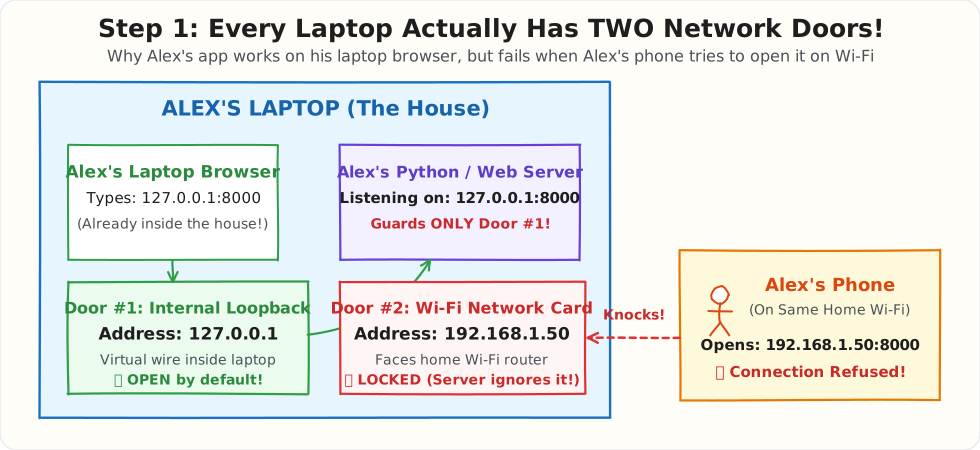
Door #1: The Secret Internal Mirror Door (127.0.0.1)
- What it is: Inside your operating system (Windows, macOS, Linux), engineers created a fake, virtual network card called the Loopback Interface.
- Why does it exist? Imagine Alex is sitting on an airplane in Airplane Mode (Wi-Fi is completely turned off). Alex still wants to write code and test his web server in Chrome on his laptop!
- Because the physical Wi-Fi chip is turned off, the operating system provides Door #1 (
127.0.0.1)—a virtual wire that stays 100% inside the laptop. Any message sent to127.0.0.1loops right back into the laptop in0.01 millisecondswithout ever touching a Wi-Fi router!
Door #2: The Physical Wi-Fi Door (192.168.1.50)
- What it is: This is your actual physical Wi-Fi hardware chip connected to your home Wi-Fi router.
- Who uses it? Other devices in your house (like Alex's phone, a tablet, or another laptop on the same Wi-Fi) can only knock on Door #2 (
192.168.1.50). Outside devices can never see or reach your laptop's internal Door #1 (127.0.0.1)!
Step 3: Decoding 127.0.0.1 (Guarding ONLY the Internal Door)
Now look back at the message Alex's server printed in Step 1:
When a server starts on 127.0.0.1:8000, you are giving the server a strict security order:
"Stand behind Door #1 (
127.0.0.1— the internal laptop mirror) and answer requests there. Lock and ignore Door #2 (192.168.1.50— the Wi-Fi door)!"
That explains Alex's Friday Demo Mystery!
* When Alex's laptop browser visited 127.0.0.1:8000, it knocked on Door #1 (inside the house) ➔ The server answered! ✅
* When Alex's phone visited 192.168.1.50:8000 over Wi-Fi, it knocked on Door #2 ➔ Nobody was standing behind Door #2, so the laptop's operating system slammed the door shut (Connection Refused)! ❌
[!TIP]
Why Do Frameworks Start on
127.0.0.1by Default Instead of Opening the Wi-Fi Door?¶Imagine Alex takes his laptop to an airport or coffee shop and connects to the public Wi-Fi. The Wi-Fi router puts everyone in the cafe into the same local network: * Alex's Laptop Wi-Fi Address:
192.168.1.50* A Stranger at the Next Table:192.168.1.51
What If the Server Defaulted To... What Happens When the Stranger Types http://192.168.1.50:8000?❌ If it defaulted to 0.0.0.0:8000(Wi-Fi Door Open)DANGER: Because Alex's Wi-Fi door ( 192.168.1.50) is open, the stranger at the next table can openhttp://192.168.1.50:8000on their laptop, view Alex's private code/database, and click buttons on his unfinished app (which doesn't have a login password yet!).✅ Because it defaults to 127.0.0.1:8000(Wi-Fi Door Locked)100% SAFE: Alex's Wi-Fi door ( 192.168.1.50) stays locked! If the stranger tries to visithttp://192.168.1.50:8000, Alex's laptop blocks them (Connection Refused). Only Alex (typing on his own laptop) can open the app!
Step 4: Decoding localhost (The Phonebook Contact Name vs. The Phone Number)
Okay, if 127.0.0.1 is the address of Door #1, then what is localhost?
Think about how you call your mom on your smartphone:
* You don't dial 98765-43210 from memory every time.
* Instead, you tap the contact name "Mom", and your phone's Contacts App looks up "Mom" and dials 98765-43210 for you!
localhost and 127.0.0.1 have the exact same relationship:
* localhost is the Human Contact Name (called a Hostname).
* 127.0.0.1 is the Actual Phone Number (the IPv4 Address).
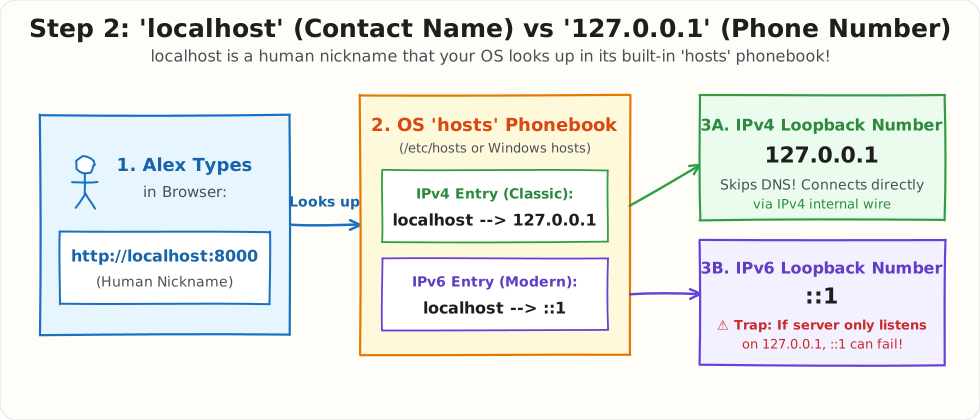
How Your Computer Translates localhost Step-by-Step
Every computer has a tiny built-in phonebook file saved on its hard drive:
* On Mac / Linux: /etc/hosts
* On Windows: C:\Windows\System32\drivers\etc\hosts
If you open that file in Notepad, you will literally see these two lines inside it:
Wait—why are there two numbers (127.0.0.1 and ::1) listed for localhost?
1. 127.0.0.1 (IPv4 — Internet Protocol version 4): The classic 4-number address format used since the 1980s.
2. ::1 (IPv6 — Internet Protocol version 6): The newer internet address format created because the world started running out of IPv4 numbers. In IPv6, the internal loopback address is written simply as ::1.
[!WARNING]
The Famous Bug: Why
http://127.0.0.1:8000Works, Buthttp://localhost:8000Fails!¶Imagine a contact card in your phone has two phone numbers saved under the same name
"localhost": * Number 1 (Old Landline — IPv4):127.0.0.1* Number 2 (New Mobile — IPv6):::1Now watch how a mismatch happens when Alex starts his server: 1. The Server Only Turns On Number 1 (
127.0.0.1): Many servers (Flask,mkdocs, older Node tools) turn on only the IPv4 landline (127.0.0.1:8000). The IPv6 mobile number (::1:8000) is switched OFF! 2. Whyhttp://localhost:8000Fails: When Alex typeslocalhost:8000, the browser opens the phonebook, sees both numbers (127.0.0.1and::1), and automatically dials the newer IPv6 number (::1:8000) first—which is switched OFF, so the connection fails! ❌ 3. Whyhttp://127.0.0.1:8000Works Instantly: Typing127.0.0.1:8000skips the"localhost"contact card and dials Number 1 (127.0.0.1:8000) directly—where the server is awake and waiting to answer! ✅
Step 5: Decoding 0.0.0.0 (The "Open ALL Doors!" Master Switch)
Now let's solve Alex's problem from Step 1: How does Alex let his phone on the home Wi-Fi open his laptop's website?
Alex stops the server and restarts it using 0.0.0.0:
Suddenly, when Alex refreshes http://192.168.1.50:8000 on his phone, the website loads immediately! 🎉
What Does 0.0.0.0 Actually Mean?
Unlike 127.0.0.1 (Door #1) or 192.168.1.50 (Door #2), 0.0.0.0 is NOT the address of a single door.
In networking, 0.0.0.0 is a special Wildcard ("Everywhere") Address. When you tell a server to listen on 0.0.0.0:8000, you are telling the operating system:
"Open EVERY single door on this machine at the same time! Answer requests coming from Door #1 (
127.0.0.1), Door #2 (Wi-Fi192.168.1.50), and any Ethernet or VPN cable plugged into this laptop!"
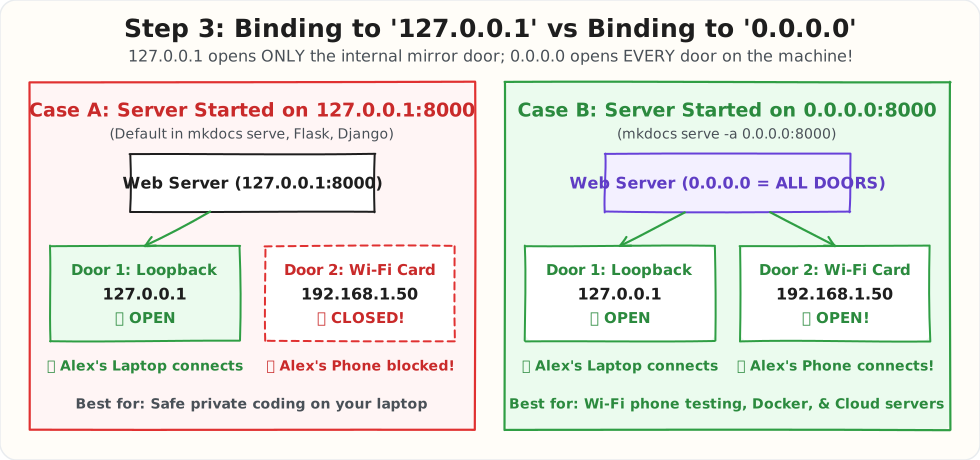
Tracing What Happens When Bound to 0.0.0.0:8000
| Who Connects? | What URL Do They Type in Their Browser? | Which Door Do They Enter? | Does 0.0.0.0 Let Them In? |
|---|---|---|---|
| Alex on his Laptop | http://localhost:8000 or http://127.0.0.1:8000 |
Door #1 (Internal Loopback 127.0.0.1) |
✅ YES! |
| Alex on his Phone (Same Wi-Fi) | http://192.168.1.50:8000 |
Door #2 (Laptop's Wi-Fi Card 192.168.1.50) |
✅ YES! |
| Teammate on Office LAN | http://192.168.1.50:8000 |
Door #2 (Laptop's Wi-Fi / LAN Card) | ✅ YES! |
[!IMPORTANT] Can You Type
http://0.0.0.0:8000Into a Browser?
0.0.0.0is meant for servers (meaning "listen on all doors"), not for browsers! While Mac/Linux browsers often redirect0.0.0.0to127.0.0.1as a convenience, Windows browsers will rejecthttp://0.0.0.0:8000.
* Rule of thumb: Start your server with0.0.0.0:8000, and in your browser always typelocalhost:8000(on your laptop) or192.168.x.x:8000(from your phone).
Summary Cheat Sheet: localhost vs 127.0.0.1 vs 0.0.0.0
| Feature | localhost |
127.0.0.1 |
0.0.0.0 |
|---|---|---|---|
| What It Actually Is | A Human Nickname (Hostname) stored in your OS hosts phonebook |
An IPv4 Loopback Address (Door #1: Internal virtual wire) | A Wildcard Server Rule ("Listen on ALL doors on this machine") |
| How It Works | OS translates localhost ➔ 127.0.0.1 (IPv4) or ::1 (IPv6) |
Sends traffic straight back into your own machine (0.01ms) |
Opens 127.0.0.1 AND your Wi-Fi/Ethernet IP (192.168.x.x) at once |
| Can My Phone on Wi-Fi Connect? | ❌ No (if server bound only to local loopback) | ❌ No (Wi-Fi door is locked) | ✅ Yes! (via your laptop's Wi-Fi IP http://192.168.x.x:8000) |
| When Should Alex Use It? | Typing a quick URL in your laptop's browser (http://localhost:8000) |
Default safe local coding (or skipping IPv6 localhost bugs) |
Testing on your phone over Wi-Fi or sharing with teammates on LAN |